AI part naming
Privacy: opt-in only, sent only to the provider you choose
- Opt-in only. No model data is sent until you connect a provider and click Name parts. Splitting, Check and everything else run on your machine.
- Sent only to the provider you choose. Requests go straight from your computer (the OrcaSlicer plugin, your local server, or your browser in the hosted app) to that provider: OpenAI, OpenRouter, Anthropic, or the base URL you enter. Their data policies apply. OpenRouter passes requests on to the model you pick.
- Fully local option. With a local server such as LM Studio or Ollama, nothing leaves your computer.
- Not shared with anyone else. Your models and info are never sent to the Mesh Splitter developer, OrcaSlicer or any other provider. There is no telemetry.
- What is sent: rendered pictures of the split model, each part's stats and your optional hint. The mesh file itself is not sent. Connect only checks your key and asks the provider for its list of models (no model data).
- Your key stays on your computer, in a settings file only Mesh Splitter reads. It is never shown to the page. In the hosted web app (no local server), the key is saved in that browser's storage instead, and sent only to the provider.
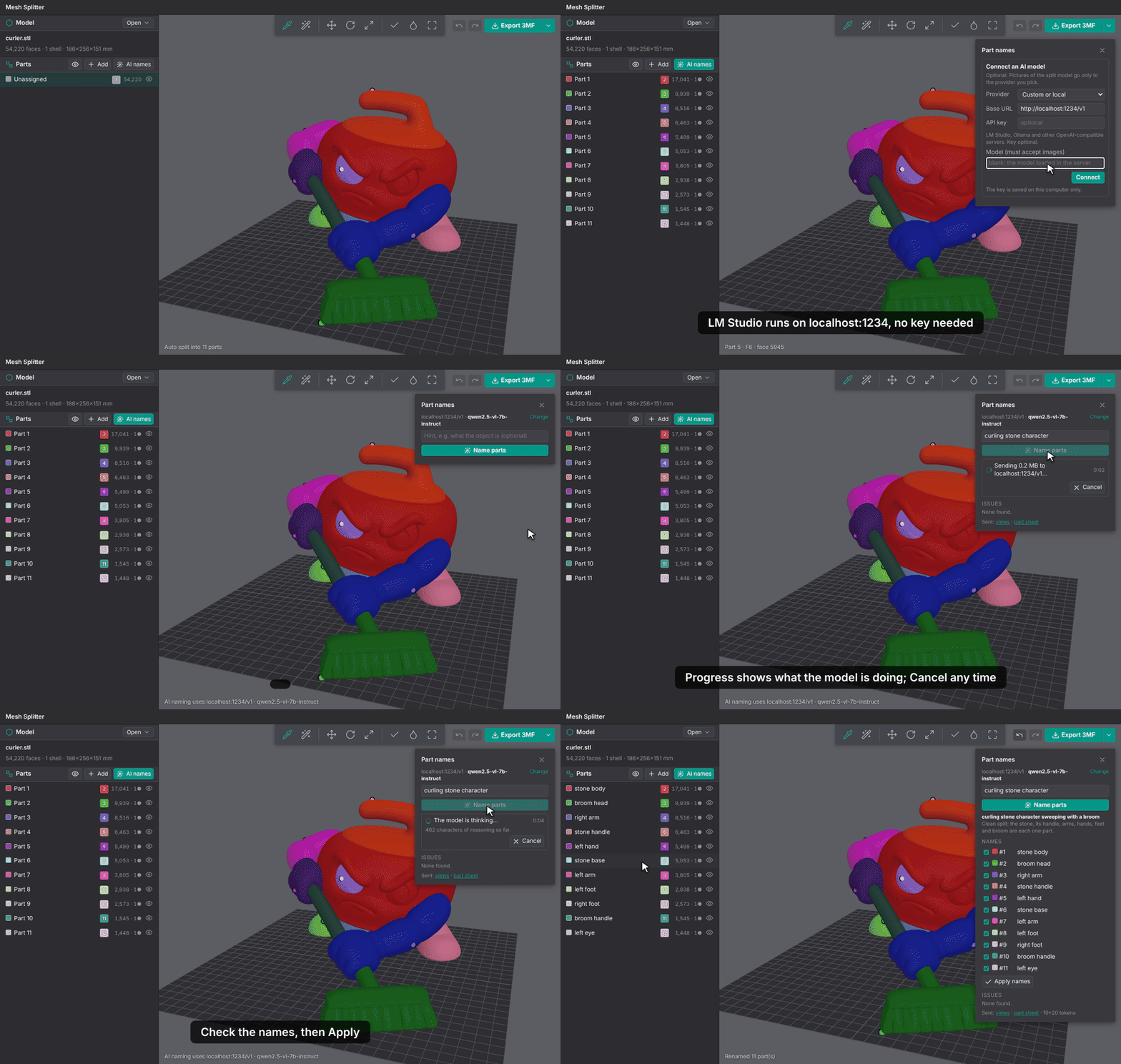
Optional. Sends pictures of the split model and each part's stats to a vision model, which suggests a name for every part and points out bad cuts, such as stray fragments, slivers or a feature split in two. Nothing changes until you click Apply names.
Works in the browser version and inside the OrcaSlicer plugin.
Providers
| Provider | Key | Base URL | Default model |
|---|---|---|---|
| OpenRouter | yes | https://openrouter.ai/api/v1 |
deepseek/deepseek-v4.1-flash |
| OpenAI | yes | https://api.openai.com/v1 |
gpt-5-mini |
| Anthropic Claude | yes | https://api.anthropic.com/v1 |
claude-opus-5-5 |
| Custom or local | optional | any OpenAI-compatible URL | the loaded model |
The model must accept images. Type any model id the provider offers; after you save, the model box also lists the provider's models.
Setup
- Click AI names in the Parts header. The first time, the panel opens on Connect an AI model.
- Pick a provider, paste your API key, and check the model (it must accept images).
- Click Connect. Mesh Splitter checks that the provider answers, takes the key, and offers the model. Only a short test is sent, with no pictures. If something is wrong, the panel says what, for example a rejected key or a model name the provider doesn't list.
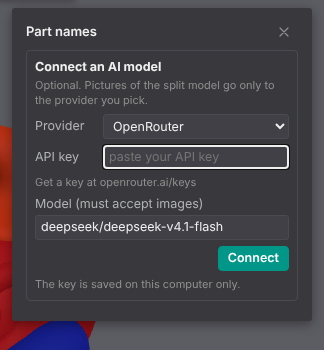
To switch provider, key or model later, click Change next to the model name.
The key is saved on this computer:
- OrcaSlicer plugin: in the plugin's own data folder (
ai_naming.json). - Browser version: in
server/llm.local.json(gitignored). - Hosted web app: in this browser's site storage. Requests go from the browser straight to the provider.
Forget key deletes the saved key for that provider.
In the browser version you can also set the key in the environment or in a .env file in the repo root, which wins over the saved key: OPENROUTER_API_KEY, OPENAI_API_KEY, ANTHROPIC_API_KEY, or MESH_SPLITTER_LLM_KEY for a custom server.
OrcaSlicer permission prompt
The first time you click Connect or Name parts in OrcaSlicer, it asks whether Mesh Splitter may connect to the provider's address. Click Yes. OrcaSlicer remembers a Yes for that address. If you click No, nothing is sent, and the panel says so; click again to be asked again.
Local models (LM Studio, Ollama)
Any server with an OpenAI-compatible /v1/chat/completions endpoint works, with no key.
- Load a vision model (one that takes images) and start the server:
- LM Studio: Developer tab, start the server. Default URL
http://localhost:1234/v1. - Ollama: runs on
http://localhost:11434/v1.
- LM Studio: Developer tab, start the server. Default URL
- In the AI settings, pick Custom or local and enter the base URL, then click Save.
- Pick the model from the model box, or leave it blank to use the loaded model.
In the hosted web app, the local server must allow requests from the app's address (CORS): in LM Studio, turn on Enable CORS in the server settings; for Ollama, set OLLAMA_ORIGINS to the app's address.
Local models can be slow to read the pictures, so Mesh Splitter waits longer for them (see below).
How to use it
- Open and split a model.
- Click AI names in the Parts header to open the panel.
- Optionally type a hint about what the object is.
- Click Name parts, read the suggested names and issues, then click Apply names to keep the names.
Progress, Cancel and time limits
While it works, the panel shows what is happening and for how long: sending, waiting for the model to start, the model thinking (with how much it has written), then receiving the names. Click Cancel to stop at any time; the request to the provider stops too.
If something goes wrong, the panel shows the error instead of waiting. Mesh Splitter gives up when:
| Cloud provider | Custom or local | |
|---|---|---|
| No answer at all | 90 s | 5 min |
| Whole answer | 5 min | 15 min |
Check (no AI)
The check button next to it runs the same cut checks locally (fragments, slivers, unassigned faces) without sending anything. It works in the browser and in the plugin.